Query by secondary index
For the complete documentation index see: llms.txt
All documentation pages available in markdown.
In this step you implement the two query methods that power the application UI. You first build a single-condition secondary-index query (query), then a multi-condition query (advancedSearch). Along the way you use Voyager to construct an AEL filter visually and paste it into your code.
The previous step left the products set with 200 records, but the home page still renders the same Oops... looks like that page doesn't exist screen you saw before, because the listing query is unimplemented:

The product grid is populated by the query method, which you implement now. Every code change in this step lives in spring-server/src/main/java/com/aerospikeworkshop/service/KeyValueServiceNewClient.java.
Use Voyager to build an AEL filter
The application defines five secondary indexes on the products set: articleType, subCategory, brandName, usage, and category. The home-page dropdowns issue queries through query(index, filterValue, count). Before writing code, build a sample query in Voyager so you can confirm the result and copy the generated AEL.
-
In Voyager, drill into the
productsset and expand any record by selecting Show 15 more bins.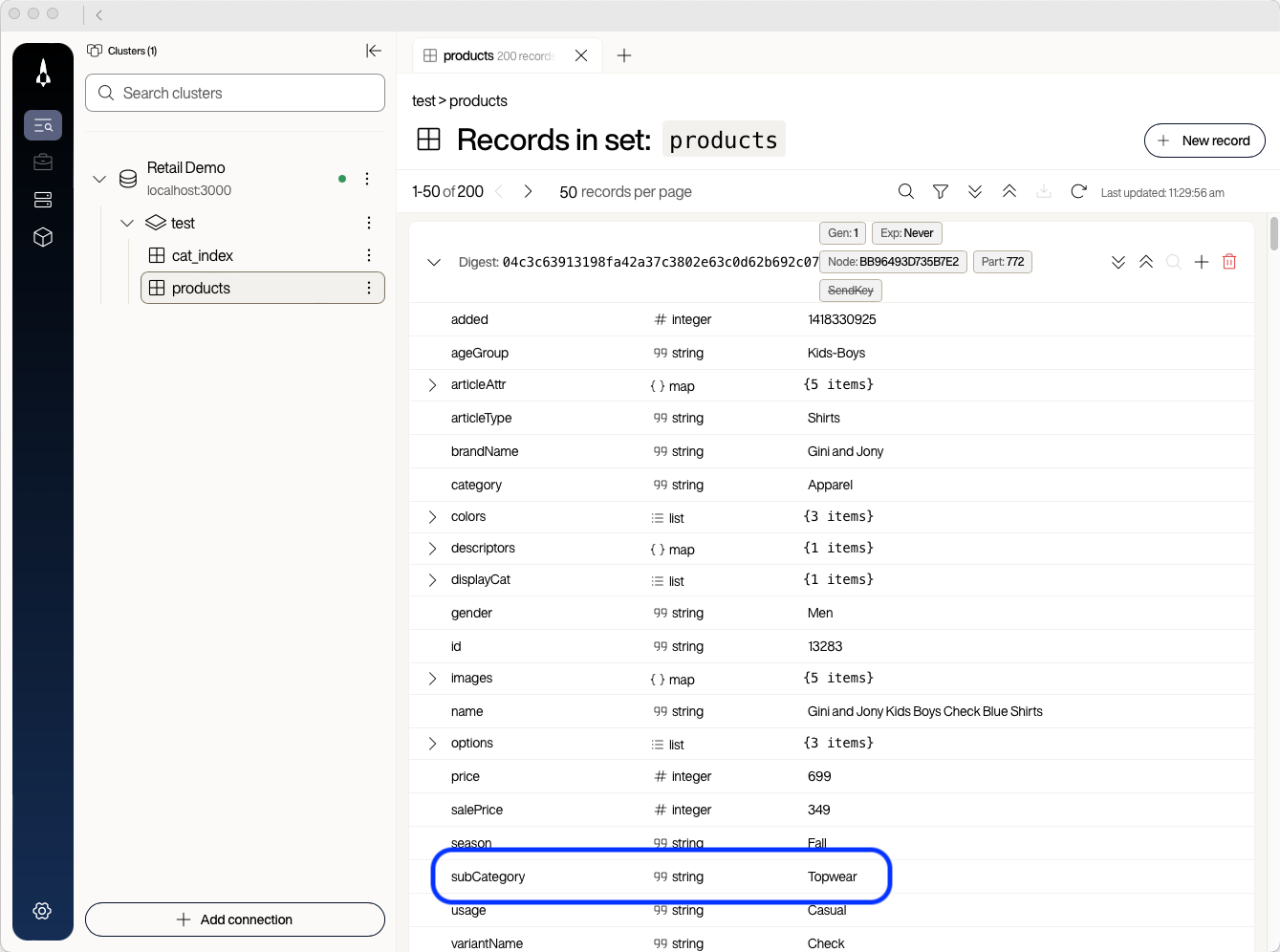
Note the
subCategorybin. You filter on it next. -
Select the filter (funnel) icon at the top of the set view.
-
In the filter dialog, enter
subCategoryas the field andShoesas the value, then select Apply.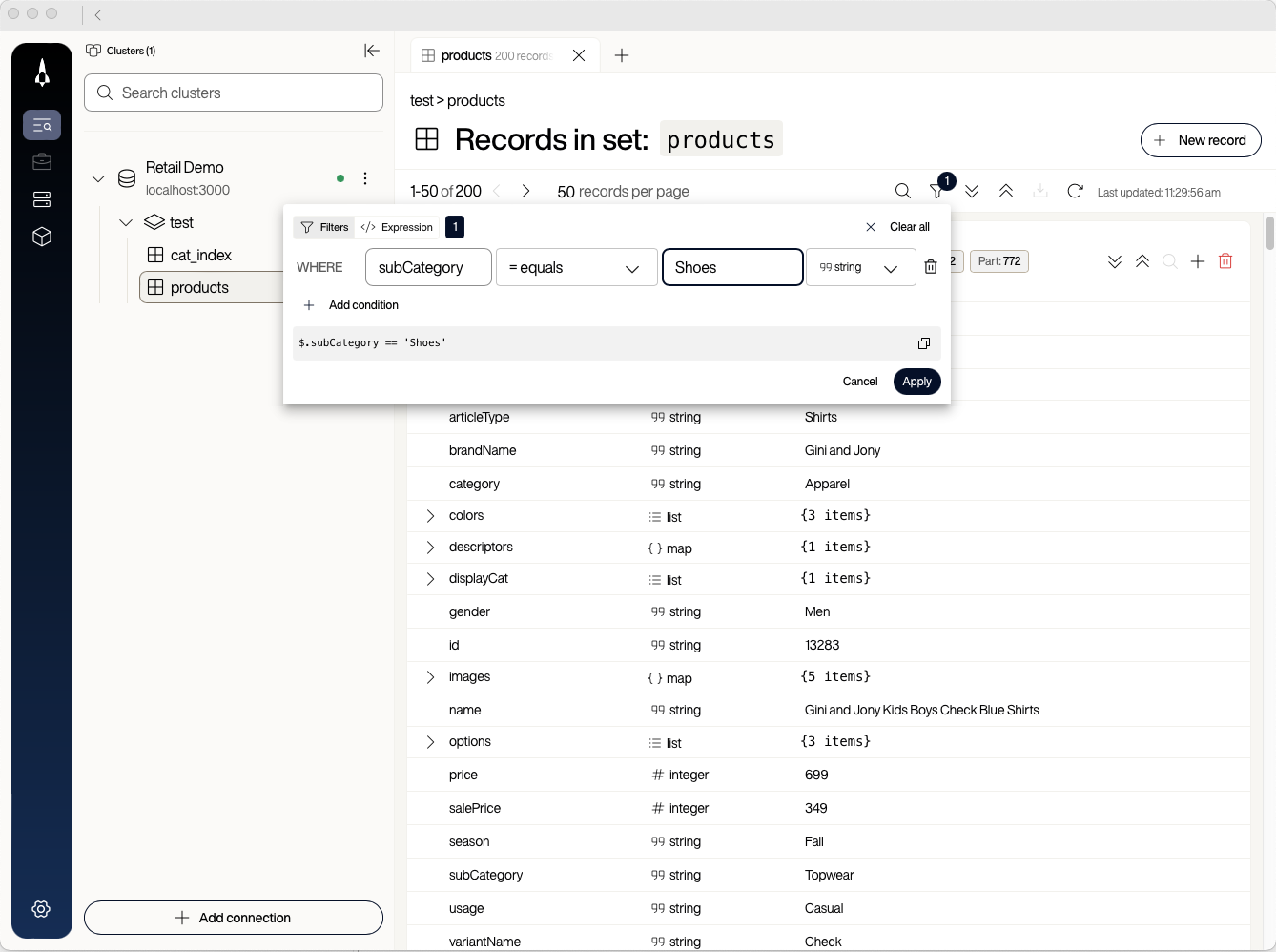
The set view updates to show only products whose
subCategoryisShoes. -
Open the filter again and look at the bottom of the dialog.
The dialog shows the corresponding AEL expression:
$.subCategory == 'Shoes'.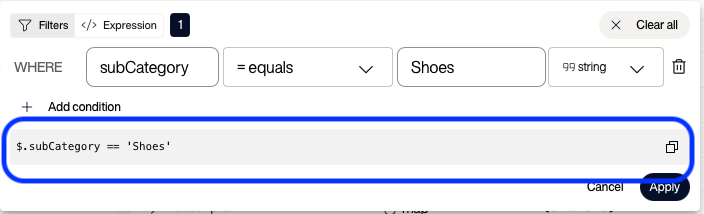
AEL is the Aerospike Expression Language. It looks similar to JSONPath and supports both bin values and record metadata such as TTL or record size. You use the visually built expression as a starting point in code.
-
Select the copy button to the right of the expression.


You can use the same workflow in reverse to debug expressions you write by hand. Whenever you are not sure that an AEL expression is correct, paste it into Voyager’s filter dialog (use the Expression tab to enter AEL directly) and confirm that Voyager returns the rows you expect before you put the expression into Java code.
Implement the single-condition query
-
In
KeyValueServiceNewClient.java, find thequery(String index, String filterValue, int count)method.The current body returns one hard-coded product:
List<Product> products = List.of(getProduct("41213").get()); -
Replace the entire
List<Product> products = List.of(getProduct("41213").get());statement with the following. Delete the original line in full; do not paste the new code on top of part of the old line, or the file no longer compiles.List<Product> products = session.query(productDataSet).where("$.subCategory == 'Shoes'").execute().toObjectList(productMapper);The chain reads: query the records in
productDataSet, filter them with the AEL expression, run the request, and turn the result stream into aList<Product>usingproductMapper. Leave the existingreturn new KeyValueServiceInterface.QueryResult(...)line as it is. -
Stop the Spring Boot application with
Ctrl+C(if it is running), then rebuild and rerun it from thespring-serverdirectory.Terminal window cd spring-servermvn clean package -DskipTestsmvn spring-boot:run -Dspring-boot.run.profiles=new-clientWait for
BUILD SUCCESSfrom the first command before you start the second. Run them one at a time. -
Reload http://localhost:8080.
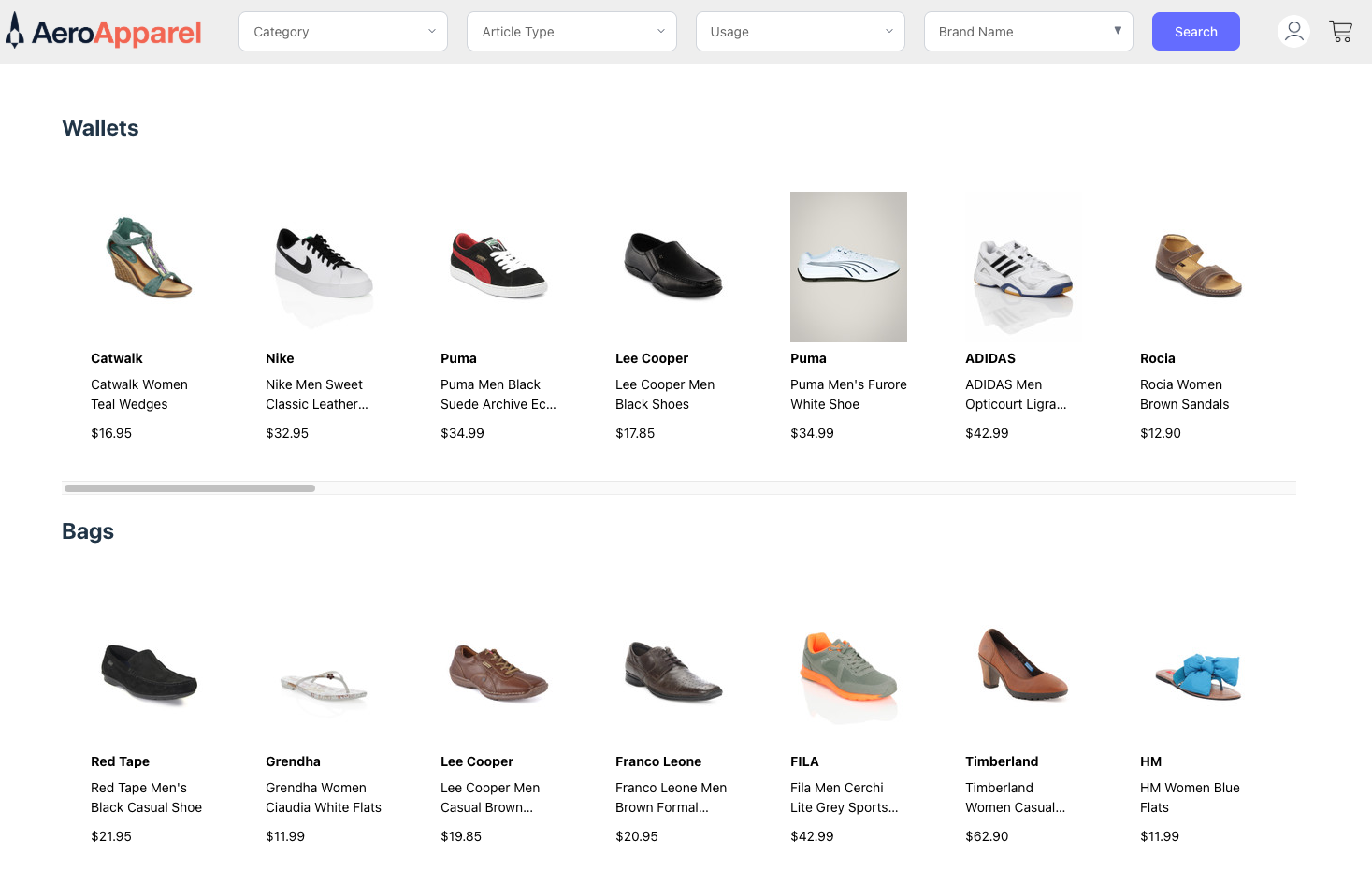
The home page now shows shoes everywhere because the filter is hard-coded.
-
Replace the entire
List<Product> products = ...;statement again, this time with one that uses theindexandfilterValueparameters.List<Product> products = session.query(productDataSet).where("$.%s == '%s'", index, filterValue).readingOnlyBins("id", "name", "images", "brandName", "price").limit(count).execute().toObjectList(productMapper);Three changes from the previous version:
whereaccepts a printf-style format string. The SDK substitutes the index name and filter value into the AEL expression.readingOnlyBinsreturns only the bins the home page needs. Returning fewer bins reduces network and memory pressure when the full record is large.limit(count)caps the number of results when the caller asks for a maximum.
-
Stop the Spring Boot application with
Ctrl+C, then rebuild and rerun it.Terminal window cd spring-servermvn clean package -DskipTestsmvn spring-boot:run -Dspring-boot.run.profiles=new-client -
Reload http://localhost:8080.
Each category and article-type dropdown now populates with the correct items.

Implement multi-condition advanced search
The four dropdowns at the top of the home page (Category, Article Type, Usage, Brand Name) all feed into advancedSearch(...). The method combines up to four bin == value predicates with AND.
The pre-existing helper code at the top of advancedSearch already builds the AEL string from the input parameters and prints it to the log, for example:
AEL: $.category == 'Apparel' and $.usage == 'Sports'The current body returns a single hard-coded product:
List<Product> products = List.of(getProduct("13283").get());Use Voyager once more to confirm that the multi-predicate AEL is correct, then write the SDK call.
-
In Voyager, open the filter dialog and add two filter rows:
categoryequalsFootwear, andusageequalsSports. Select Apply.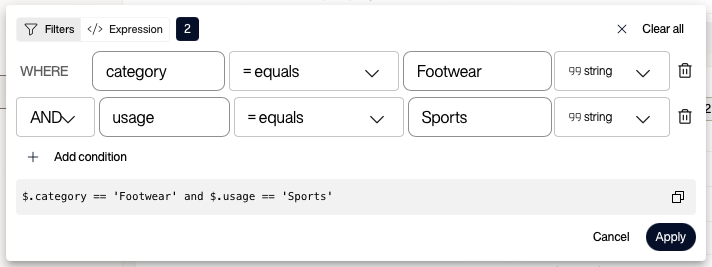
The set view shows only sports footwear, and the dialog displays the combined AEL:
$.category == 'Footwear' and $.usage == 'Sports'. -
Find
advancedSearchinKeyValueServiceNewClient.javaand replace the entireList<Product> products = List.of(getProduct("13283").get());statement with the following. Delete the original line in full first; pasting on top of part of it produces a doubledList<Product> products = List<Product> products = ...that fails to compile withcannot find symbol: variable List.List<Product> products = session.query(productDataSet).where(ael).limit(count).execute().toObjectList(productMapper);The body is almost identical to the single-condition query. The only differences are that
wheretakes theaelstring the helper code already built, andreadingOnlyBinsis omitted because the search results page renders the full record.You did not tell the SDK which secondary index to use, even though up to four of the predicates may have one. The SDK parses the AEL expression, picks the most selective indexed predicate, uses that index for the initial scan, and applies the remaining predicates as a filter expression. This is true whether you wrote the AEL by hand or built it visually in Voyager.

Confirm the queries work
-
Stop the Spring Boot application with
Ctrl+C, then rebuild and rerun it.Terminal window cd spring-servermvn clean package -DskipTestsmvn spring-boot:run -Dspring-boot.run.profiles=new-client -
Reload the home page and try several combinations of category, article type, usage, and brand. The product grid updates to match the selected filters.
-
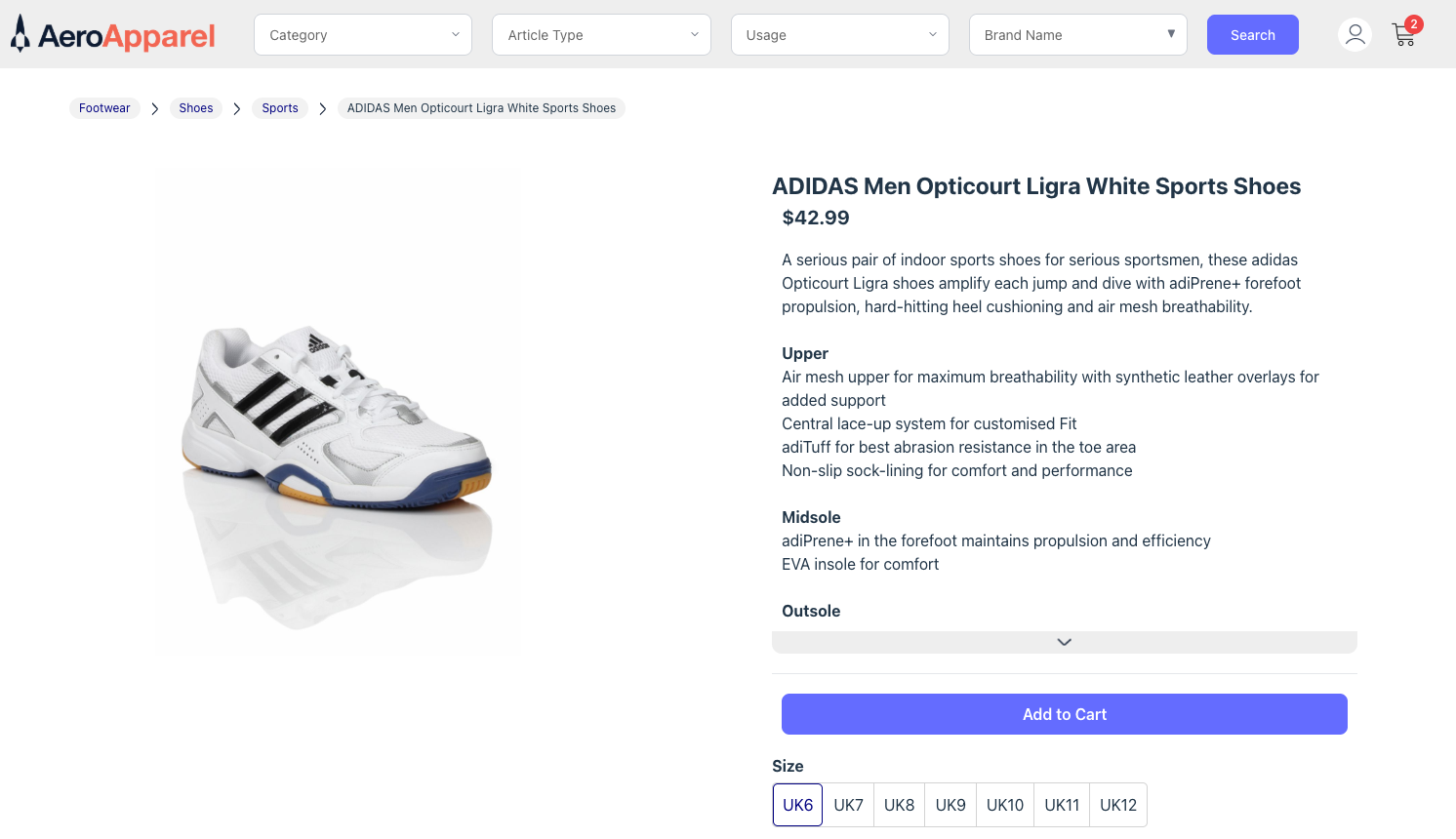
Select any product to load its detail page. The page renders the product’s full information.

Outcomes
You now have:
- A single-condition
querymethod that uses any of the five secondary indexes. - A multi-condition
advancedSearchmethod that combines up to four predicates withAND. - A working pattern for testing AEL expressions in Voyager before putting them in code.
You cannot yet:
- Add items to the shopping cart. The cart is empty (after
getCartis fixed in the next step) becauseaddToCartis not yet implemented.
In the next step you implement the cart methods, including a check-and-set update on a nested map document.